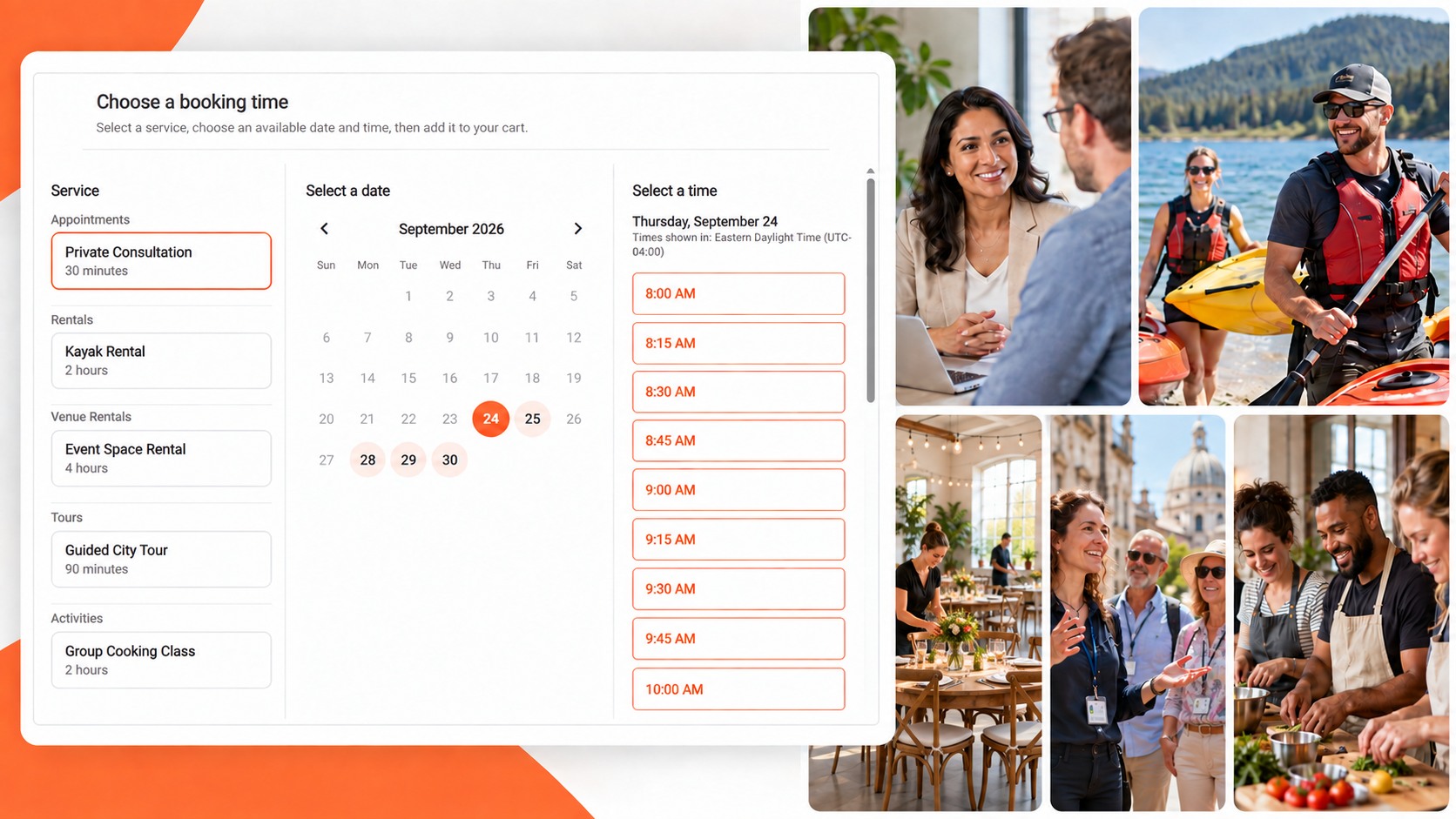
Turn your Ticketor site into an online booking destination for appointments, rentals, equipment, tours, activities, classes, lessons, consultations, and other scheduled services. Customers can choose what they need, select an available date and time, answer booking questions, and complete their reservation online.
Create and manage bookings from "Control Panel > Events & Venues > Bookings". Configure availability, capacity, duration, buffers, flexible prices, payment or verification requirements, customer questions, confirmations, calendars, and cancellation or reschedule rules for each booking.
Booking basics
- Booking: The appointment, rental, equipment, class, lesson, tour, activity, consultation, or other service customers can reserve. Edit the booking to change the title, location, availability, services, prices, questions, confirmations, and policies.
- Availability: The schedule of times customers can book. Add the days and hours you are available, then add skipped times for holidays, breaks, or closed days.
- Booking window: Controls when customers can book each appointment or rental. For example, you can open booking 30 days before each appointment and close it 1 day before it starts.
- Location: Where the appointment, class, tour, or rental happens. Customers attend in-person unless you configure the booking differently.
If you are familiar with recurring events in Ticketor, bookings are very similar, except:
- The start time is selected by the buyer instead of being fixed by the organizer.
- One timeslot can be booked by only one buyer or party. Once a timeslot is booked, nobody else can book it.
- The duration is set by the service group. Booking options under that service group use the same duration.
Services and prices
- Service group: Use a service group when the duration, capacity, or booking type is different. Examples: 30-minute boat rental, 1-hour boat rental, private rental for up to 6 people, group class for up to 20 people, standard tour, premium tour, single jet ski, or pontoon boat.
- Capacity: Capacity is per booking for that service group. Capacities are not added together across service groups. Once one service is booked for a time, the other services on the same booking calendar are unavailable for that time.
- Booking option: Use booking options for other prices inside the same service group and duration, such as adult, child, member, non-member, early bird, group-size, weekday, weekend, or equipment pricing.
- Duration and buffers: Set the duration on the service group. Booking options under it automatically use that duration. Optional buffers add time before or after the booking so you have time to prepare, clean up, travel, or reset equipment.
Example: For boat rentals, create separate service groups for 30-minute rental and 1-hour rental. Under each service group, add booking options such as adult, child, member, non-member, weekday, or weekend pricing. If a customer books that boat at 9:00 AM, the booking calendar is blocked for that time even if the party uses only part of the capacity.
Example: For classes, create separate service groups when the duration or class size is different, such as private lesson for 1 person and group class for 10 people. Add booking options for customer type, membership, early bird, or group-size pricing.
If you can provide parallel similar or different services, create one booking for each resource and give them the same category. For example, if you have 5 jet skis, create 5 identical bookings with the same category. If several staff members can provide the same appointment, create one booking for each staff member with the same category. Then use the category booking link from the Promote tab to share one page where customers can book any available option in that category.
Payment and verification options
Choose what customers must do to confirm each service. You can collect full or partial payment, place a full or partial authorization hold on the payment card, verify the customer's email or phone number, or allow the booking without an upfront payment or verification.
These options make the same booking system useful for prepaid activities, deposits on rentals, card holds for equipment, and appointments that only need verified contact information.
Calendar links
Attach the calendars used by this booking. Each linked calendar can be used to check availability, add confirmed bookings to the calendar, or both.
Use "check availability" for calendars that should block busy times, such as a staff calendar, room calendar, boat calendar, or equipment calendar. Use "add bookings" for calendars that should receive the final confirmed appointment or rental.
You can attach more than one calendar. This is useful when one booking depends on a person, a room, and a piece of equipment.
What customers see
Customers open the booking page, choose a service, choose a date, then choose an available time. Available times are calculated from your booking schedule, skipped times, booking window, existing bookings, and linked calendars.
When a customer adds a time to the cart, Ticketor reserves that booking time. If the cart is emptied or expires, the unused booking hold is cleaned up so the time can become available again.
Confirmation, cancellation, and reports
Use the confirmation and cancellation settings to choose delivery methods, confirmation images, cancellation rules, exchange or reschedule rules, and any questions customers must answer.
Use Booking Report to review scheduled bookings, exported booking lists, canceled bookings when needed, and calendar-style daily schedules.
