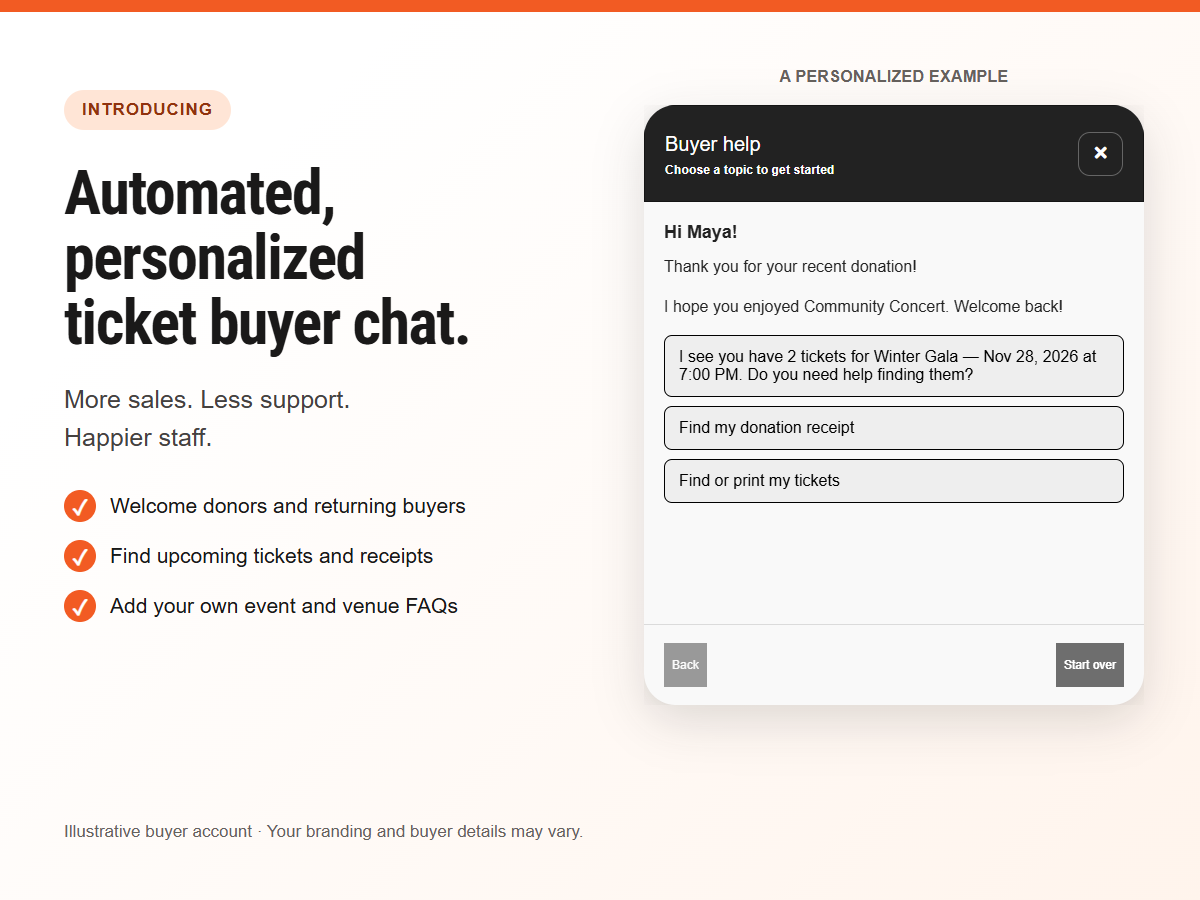
Introducing automated, personalized ticket buyer chat. More sales. Less time on support. Happier staff and buyers.
Take your sales and support to the next level without spending your day answering the same questions. Let Ticketor's intelligent, personalized chat welcome each buyer as a donor, season holder, member or returning visitor, and help with both past purchases and their next visit.
After a buyer signs in, the chat securely accesses that buyer's own account and purchase records. It uses their upcoming tickets, recent purchases and donations, and membership or season-pass status to suggest relevant questions, offer personal answers and provide direct links to the actions they need.
Help buyers sign in, find, show or print tickets, get donation receipts, explore events and venues, buy or use memberships and season passes, and plan their next purchase. Add your own FAQs to answer common questions and give your staff more time for buyers who need a personal reply.
Activate and experience buyer support
- Open Control Panel > Account & Settings > Buyer Chat Support.
- If the add-on is not active, review your trial end date and monthly price, then choose Activate and try. You can disable it from Plan & features before the trial end date to avoid charges.
- In the admin chat header, choose Try Buyer Chat. Select a buyer by name, email or phone, then choose Start chat to preview their personalized experience. Admin accounts are not included.
The preview is read-only. Switch buyer returns to the buyer selector; Admin help restores the admin support chat. Sites without admin chat have a standalone Buyer Chat Support launcher.
Activate or manage Buyer Chat Support
Add answers to your common questions
In Buyer Chat Support, use the status and scope filters to find an existing FAQ, or choose New FAQ. Enter a question and a plain-text answer, then publish it when ready. Buyers can choose a published question in chat to see its answer.
Leave the scope unrestricted to show the FAQ under General questions and on event screens. To show it only in relevant contexts, target an event, category, organizer, or price-level matching code. All selected filters must match.
For competing answers to the same question, event-specific rules take priority over category and organizer rules. Category and organizer have equal priority; additional filters and price codes refine the scope. Lower order numbers win ties between equally specific answers. Unrelated FAQs remain available.
Let buyers email your team
In Email support, enable Allow buyers to email an agent and save the recipients. Enter comma-separated addresses, or admins for all administrators. The default is admins. Disable the setting to remove the in-chat email option.
When automated help does not resolve a question, buyers can choose Send Email to an agent. Your team receives the buyer's request followed by the chat history and replies by email. This is an email request, not a live-agent chat connection.
Personalized help with private information protected
Buyers sign in before their purchases are shown. The chat offers only the account's authorized ticket and order links, and public event and venue information. Public event discovery does not reveal private events, hidden fields or internal organizer details. Return, exchange, purchase and refund-protection actions continue through their existing eligibility and policy checks.
The chat uses guided choices, your published FAQs and current Ticketor records. Publish bag policies, dress codes or other venue rules as FAQs if you want the chat to answer those questions.
